Monday, March 16, 2020

High Contrast Animated Step-by-Steps® - A Starting Point


There are currently 46 high contrast Animated Step-by-Steps®  available through TpT.  Compared to the Regular, PCS and SymbolStix versions, the VI version is designed to better address the high contrast needs of students with visual impairments. Yes, I am well aware of the fact that these resources might not be a perfect fit for your particular student's visual strengths but it's important to   think of the VI resource offered, as a possible 'jumping off point'. Depending upon the complexity of the animations, you may be able to substitute preferred visuals for existing visuals, while keeping the animation sequence intact. Illustrated below is a slide from the  original version, contrasted with a slide that has been modified to reflect simplified visuals.


To substitute visuals, simply control click (mac) or right click (windows) on the visual that you wish to replace ... navigate to where you are storing your 'substitute' image (perhaps one that is simpler or reflects your student's preferred colors) ... select the substitute image (it must have a transparent background; png format) and presto it is replaced in the resource without disrupting the animation sequence! In the accompanying image, the traffic light base has been substituted ... a red circle was substituted ... a yellow circle was substituted and the original green light is in the process of being substituted.  A Control click on the current green light  brings up a dropdown menu allowing you to select the Change Picture command. You must then navigate to select the substitute image stored on your computer.

For further detailed information on replacing images within the animation sequence, please visit these previous blog posts:

http://bit.ly/EasyPersonalize
http://bit.ly/2hV71nK

…’til the next post … 

Visit my website   http://animatedstep-by-steps.com
Follow me on twitter www.twitter.com/@AnimStepbySteps
Follow me on facebook www.facebook.com/AnimatedStepBySteps
Email me canadiangoosse@gmail.com

©2020 Carol Goossens’, Ph.D.
Augmentative Communication Consultant
Special Educator

Monday, March 9, 2020

Illustrated Listing of Animated Step-by-Steps® for VI

Download the FREE Illustrated Listing of Animated Step-by-Steps® for students with Visual Impairment.


These VI resources (available through TpT) can be displayed on the 'big screen' (interactive whiteboard, large screen TV using Apple TV) or the 'small screen'  (computer monitor, iPad/Android tablet or iPhone using the free Microsoft PowerPoint app designed for each). 

…’til the next post …  

Visit my website   http://animatedstep-by-steps.com
Follow me on twitter www.twitter.com/@AnimStepbySteps
Follow me on facebook www.facebook.com/AnimatedStepBySteps
Email me canadiangoosse@gmail.com

©2020 Carol Goossens’, Ph.D.
Augmentative Communication Consultant
Special Educator

Sunday, March 1, 2020

FREE 5 Little Shamrocks

'Test drive' the Animated Step-by-Steps® format with the following FREE formats (Regular, PCS, SymbolStix and VI). Available for FREE through TpT.


The high contrast, VI version, is designed to better address the needs of students with visual impairments. This format also works well for some students on the autism spectrum. Download the Regular version and the VI version to compare and contrast which format works best for your student on the spectrum.

5 Little Shamrocks can be displayed on the 'big screen' (interactive whiteboard, large screen TV using Apple TV) or the 'small screen'  (computer monitor, iPad/Android tablet or iPhone using the FREE Microsoft PowerPoint app). 

Hope you enjoy using these FREE resource. 

…’til the next post …  

Visit my website   http://animatedstep-by-steps.com
Follow me on twitter www.twitter.com/@AnimStepbySteps
Follow me on facebook www.facebook.com/AnimatedStepBySteps
Email me canadiangoosse@gmail.com


©2020 Carol Goossens’, Ph.D.
Augmentative Communication Consultant
Special Educator

Tuesday, February 25, 2020

FREE 5 Little Valentines

If you wish to 'test drive' the Animated Step-by-Steps® format, use this link to download the FREE
 5 Little Valentines  resource. This title is available in 4 formats: Regular, PCS, SymbolStix and VI and can be displayed on a broad range of technology using either the Microsoft PowerPoint application for your computer or the free Microsoft PowerPoint app designed to display PowerPoint on your iPad/iPhone/Android tablet.


This high contrast VI version is designed to better address the needs of students with visual impairments.

This format also seems to work well for some students on the autism spectrum. Download the Regular version and the VI version to compare and contrast which format works best for your student.

This resource can be displayed on the 'big screen' (interactive whiteboard, large screen TV using Apple TV) or the 'small screen'  (computer monitor, iPad/Android tablet or iPhone using the FREE Microsoft PowerPoint app). 

…’til the next post …  

Visit my website   http://animatedstep-by-steps.com
Follow me on twitter www.twitter.com/@AnimStepbySteps
Follow me on facebook www.facebook.com/AnimatedStepBySteps
Email me canadiangoosse@gmail.com


©2020 Carol Goossens’, Ph.D.
Augmentative Communication Consultant
Special Educator

Saturday, December 21, 2019

PowerPoint's Flexible Display Options

In many ways Microsoft PowerPoint is the perfect program for developing educational materials. Many classrooms have access to this ubiquitous 'cross-platform' program, providing maximum flexibility for home & classroom use. 

Upon creation, the PowerPoint resource can be flexibly displayed in a variety of  'big screen' or 'small screen' formats. 

Big Screen Formats:

Big Screen formats are especially useful for conducting group lessons. They can be used to either pace students through a shared project (e.g., making Pumpkin Loaf, Bean Experiment) or can be used to familiarize students with the overall scope of a project that will be conducted later in smaller 'hands-on' groupings, (e.g., Planting, Spin Art). 


Interactive Whiteboard

Interactive White Board (Smart)                                                                             TAPit         


When using the interactive whiteboard, students can trigger the animations directly by approaching and tapping the whiteboard or remotely from their seats by pressing a teacher-offered 1) infrared switch, 2) bluetooth switch, 3) a regular switch connected to the IWB computer via a switch interface, e.g. Switch Interface Pro (Don Johnson Equipment) or 4) by turning your iPad into a functional switch using the reasonably-priced Attainment Switch app. Additionally, several remote switch options have a jack to permit a student to use their individualized switch setup to trigger the animations. This option is especially beneficial when using control sites other than a simple hand activation, e.g., using the head, knee or elbow to trigger the animations. Suddenly the ASbyS resource becomes an excellent vehicle for switch training both within and outside the classroom! A 'safe zone' is provided on each page of an AsbyS resource to minimize the results of accidental activations.

A chart of remote switch access is available in a previous post 

Apple TV

If you have an iPad/iphone you can use Microsoft PowerPoint's device-specific apps to display your Animated Step-by-Steps® (ASbySs) on your large screen TVusing Apple TV.  If you are using the iPad/android tablet you will need to download the PowerPoint app designed for the iPad; if you are using the iPhone you would need the iPhone version.
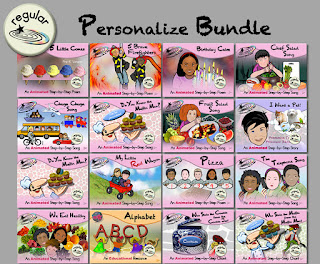


The ability to display an ASbyS on a large screen TV is especially fun when the resource has been personalized with photo faces of classmates or family members.  For more information on resources that can be personalized, please check out the Personalized Bundle on the TpT site.  When using a large screen TV format, the animations are triggered using a swipe to the left on the source device, i.e., either the iPad or the iPhone used to airplay the resource.


Small Screen Formats:

Classroom Computer

Within the classroom, the computer can be established as an interactive center. Usually an adult assigned to this station collaboratively reading the content of the Animated Step-by-Step with a single or paired students who take turns triggering the animations by tapping the spacebar of the computer keyboard. Read up to the star then tap the spacebar to trigger the corresponding animation. A remote switch option similar to that discussed for interactive whiteboards is also possible when using the computer.


In the preschool classroom, ASbySs are typically chosen to support ongoing themes within the classroom.  Poems/songs are read three or four times over the duration of the unit. For example, if the Fall theme is Apples, several apple-themed poems/songs/recipes/crafts might be introduced.

Ipad/Android Tablet

Upon accessing your Microsoft 360 or installing the FREE Microsoft PowerPoint app on your iPad/Android tablet, you need to establish a link to a storage option, (e.g., Dropbox or Google Drive)… where your resources will reside ready to be imported for use into the app.


IPhone
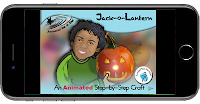
Yes, you can even use ASbySs on your iPhone … provided you have access to Microsoft 360 or the free Microsoft PowerPoint app specifically designed for the iPhone. This option is especially great for families attempting to minimize the wait time of family appointments. As previously discussed you do not need to have internet access to use resources previously imported into the app. 


Other Flexible Options for the Classroom:

If you need 'upclose and person', Splashtop Classroom offers the ability to mirror the contents of the Interactive Whiteboard (displayed for the benefit of the group) and displayed on the iPad (for the benefit of an individual student requiring something closer for viewing. This may be especially helpful for the student that is distractable or visually impaired. 


The bottom line:  Microsoft PowerPoint is a flexible format for designing and displaying highly interactive and engaging resources. 

In the Bloom Where You're Planted Store of the Teachers Pay Teachers site, several free resources are provided to allow therapist and educators to 'test drive' this flexible teaching format.

That's a wrap' for 2019! Hope to see you in 2020!

Visit my website   http://animatedstep-by-steps.com
Follow me on twitter www.twitter.com/@AnimStepbySteps
Follow me on facebook www.facebook.com/AnimatedStepBySteps
Email me canadiangoosse@gmail.com

©2019 Carol Goossens’, Ph.D.
Augmentative Communication Consultant
Speech-Language Pathologist
Special Educator

Friday, November 15, 2019

FREE Sweet Potato Pie Animated Step-by-Step Thanksgiving Poem

Having much to be thankful for, I have just posted a FREE Thanksgiving poem called
Sweet Potato Pie. This resource, originally derived from the web (author unknown), is available in three formats: Regular, PCS, and SymbolStix and can be downloaded from the Bloom Where You're Planted Store on the Teachers Pay Teachers site.


Although this is NOT a traditional Thanksgiving Poem, it is a wonderful vehicle for familiarizing students with the pies that might appear in their Thanksgiving feast (pumpkin, apple, lemon meringue, sweet potato pie) : )


Hope you enjoy using this resource with your students.


…’til the next post … 

Visit my website   http://animatedstep-by-steps.com
Follow me on twitter www.twitter.com/@AnimStepbySteps
Follow me on facebook www.facebook.com/AnimatedStepBySteps
Email me canadiangoosse@gmail.com

©2019 Carol Goossens’, Ph.D.
Augmentative Communication Consultant
Speech-Language Pathologist
Special Educator

Monday, November 4, 2019

Animated Step-by-Steps® on the iPhone!


I've been using the free Microsoft PowerPoint App with the iPad/Android tablet in classrooms for years but it is only recently that I downloaded the app to 'test drive' the iPhone version. 


I placed several Animated Step-by-Steps® (ASbySs)  in my Dropbox (you could also use Google Drive) and linked the iPhone version of the Microsoft PowerPoint App to my dropbox. I used the Add a Place command to establish a link between the app and dropbox.


I then used the Open command on the tool bar at the bottom of the screen to upload a maximum of 200 mb or about 10 ASbySs into the app.


After your files are uploaded into the app, they will remain in a folder called 'recent' visible on the bottom toolbar. Although you need wifi to upload the files, you do NOT need wifi to use them! How convenient!

In your recents folder, click on the resource you wish to open. When a resource first opens it appears in edit mode (although technically you cannot edit with the free version of the app). Just press the play arrow on the top tool bar to put the resource into presentation mode.


All the animations and the sound effects of the resource are now operative and can be triggered with an index finger swipe to the left on the screen. 

Use the page arrows (bottom of the opened page) to move forward or backwards in the resource.


Note of caution: if the screen accidentally zooms out, the animations will not work. Simply use the pinch gesture to return the screen to normal size. 


To exit the program, tap the top of the screen to reveal a tool bar, then select the X on the far left to take you out of presentation mode. 


Select the arrow on the top left to backtrack to where you can use the recent folder to select a different resource. 


So next time you are waiting somewhere with your child and you need a little entertainment, grab your iPhone … activate your Microsoft PowerPoint app and enjoy reading an interactive Animated Step-by-Step together!!!!

…’til the next post … 

Visit my website   http://animatedstep-by-steps.com
Follow me on twitter www.twitter.com/@AnimStepbySteps
Follow me on facebook www.facebook.com/AnimatedStepBySteps
Email me canadiangoosse@gmail.com

©2019 Carol Goossens’, Ph.D.
Augmentative Communication Consultant
Speech-Language Pathologist
Special Educator